The TOC Extractor from PDFs
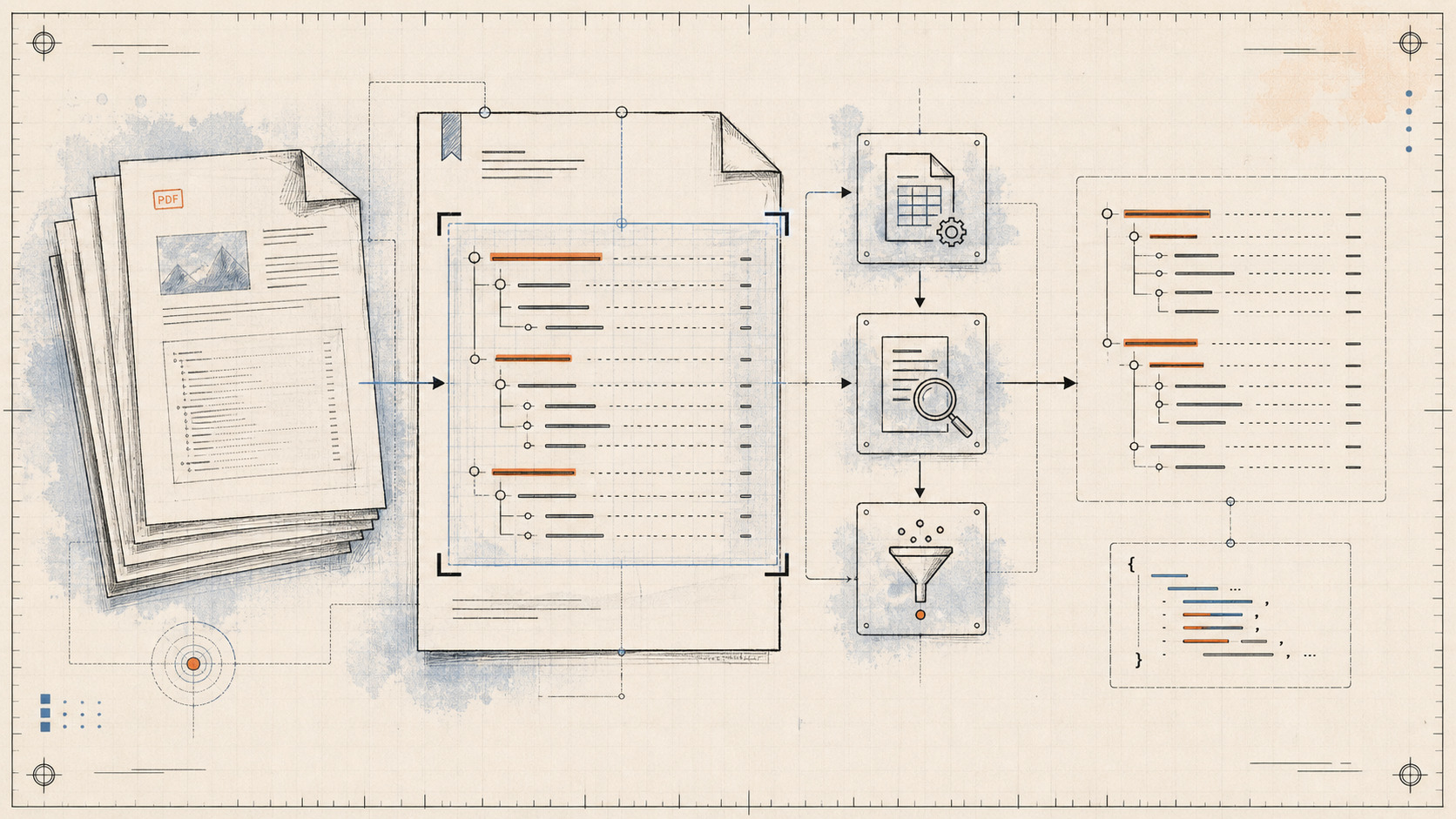
How can you extract a Table of Contents from any PDF — even messy non-standard ones — without ML, DL, or LLMs? Just Python, PyMuPDF, PDFPlumber, and a stack of regex filters.
Introduction
During a recent interview with a startup, I was asked an interesting real-world question they were solving for a client: "How can you extract the Table of Contents (TOC) from PDFs to help segment them into chunks and retrieve information based on the TOC context?"
At the time I didn't have an answer ready. After the interview, I kept thinking about it — how could one efficiently extract a TOC from a PDF quickly? I started exploring libraries and GitHub repositories that claimed to do this. The results were underwhelming.
That's when the idea struck me: Why not build the tool myself? A tool designed to efficiently and accurately extract the TOC from PDFs, making it easier to process and retrieve context-driven information. No ML, no DL, no LLMs — just Python and regex patterns.
How to install and use the tool
The pipeline tries three methods in sequence. If method 1 fails on a PDF, method 2 takes over. If 2 fails, 3 kicks in. Most real-world PDFs are caught by one of the three.
Method 1 — PyMuPDF (Fitz_TOC_Extractor_1.py)
The first script leverages the PyMuPDF (fitz) library to extract the TOC. The script scans the structure of the PDF — typically the metadata towards the end of the file — to identify and retrieve the TOC.
This is similar to how PDF viewers display the TOC: like the left-hand panel in a VS Code PDF viewer extension. The TOC lets you click a topic and jump to the corresponding section.
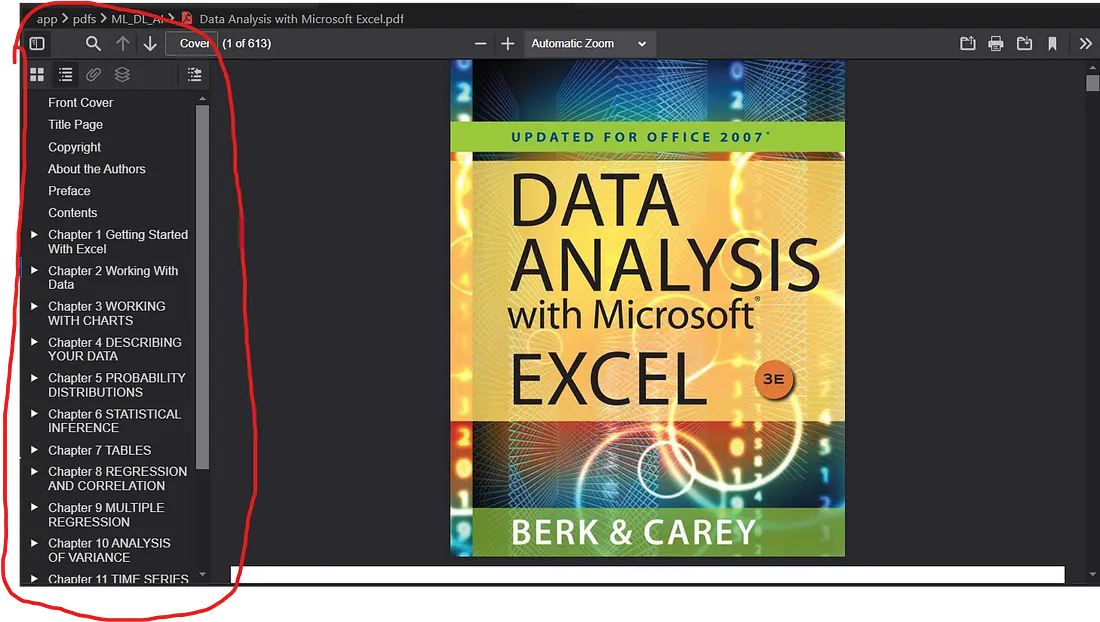 PDF viewer extension showing the TOC panel on the left side
The results extracted using PyMuPDF are identical to what you'd see in a viewer's TOC panel. Output is saved in output/01, with the structured TOC data showing the section/subsection hierarchy.
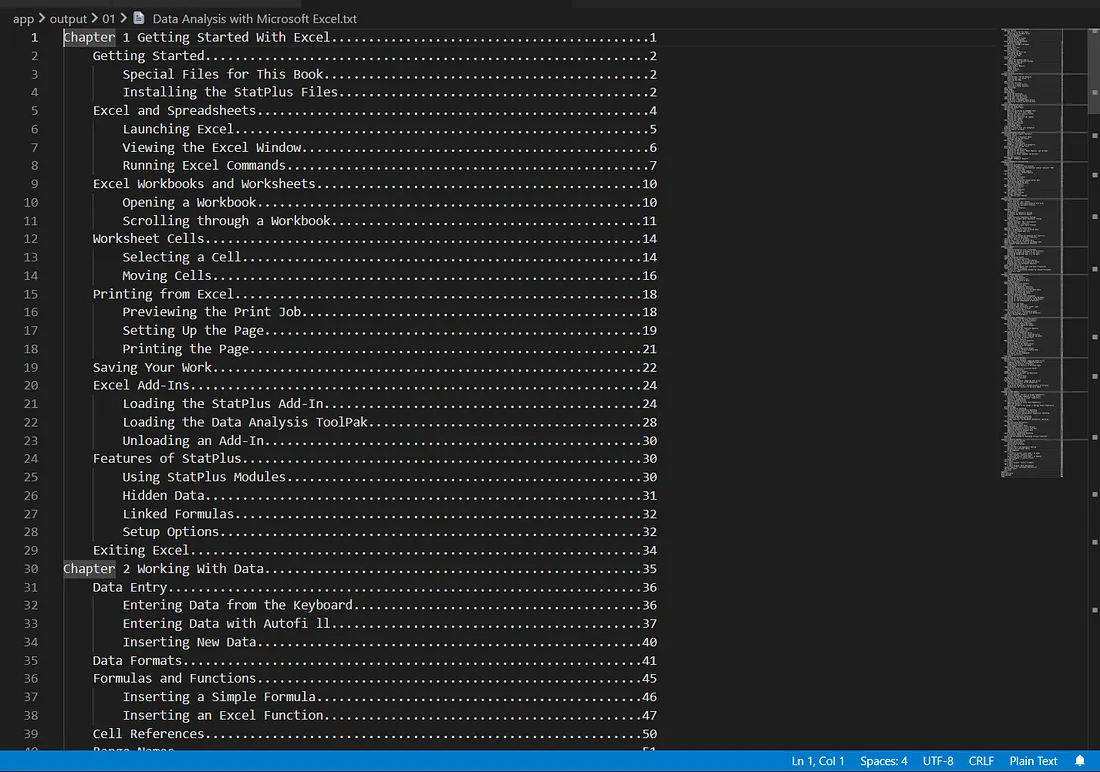 Extracted TOC saved to output/01 by the first method
The page-number problem
There's a significant catch. PyMuPDF page numbers are based on the physical PDF order, starting from page 1. Most books include acknowledgments, intros, and the TOC itself before the actual content begins — and those preliminary sections are usually not numbered.
For example, PyMuPDF might mark the first page of the PDF as page 1, but the actual content of the book might start on the 14th physical page (which the book labels as page 1). Result: perfectly extracted topics with wrong page numbers.
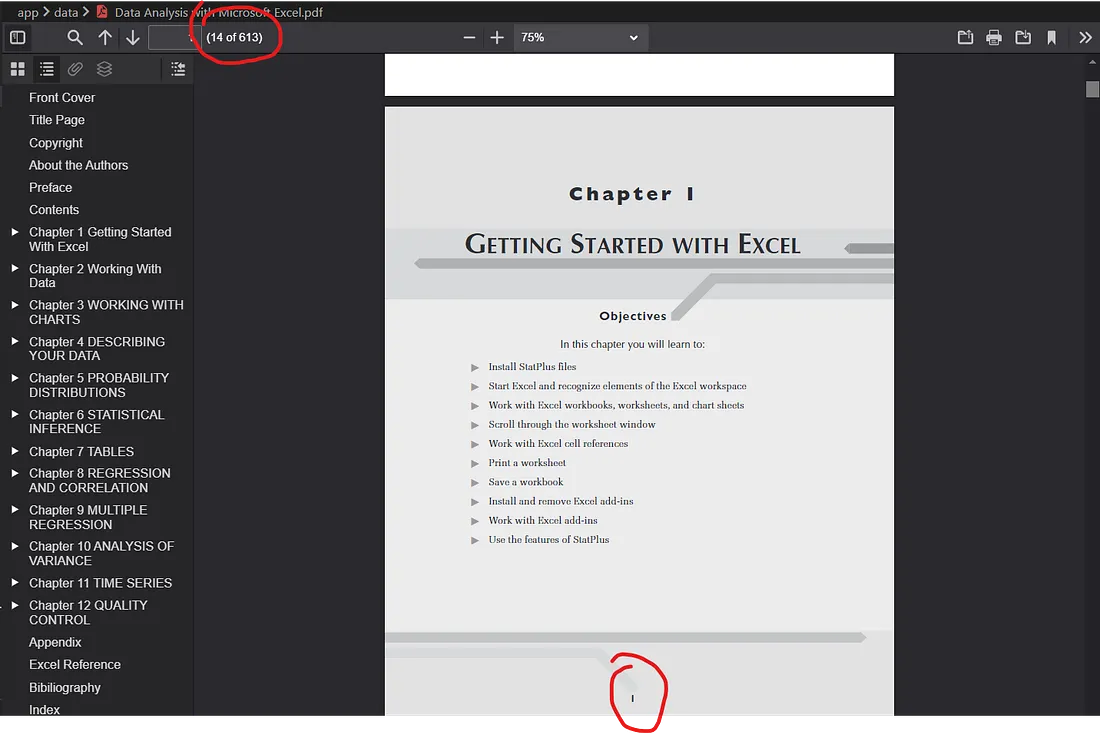 Wrong page numbers in the extracted TOC because of the physical-vs-actual mismatch
The offset fix
I wrote a script that adjusts page numbers by computing the offset:
- Identify the starting page number. Scan a portion of the header/footer on each page to find where actual numbering begins (e.g., the first numbered page is physically page 14).
- Calculate the offset. Difference between the physical PDF page number and the actual page number. If the first labeled page is physically page 14, offset = 13.
- Adjust all page numbers. Subtract the offset from every TOC entry to get the correct page numbers.
For the PDF in the example above, the offset was 13 — so we subtract 13 from every extracted page number.
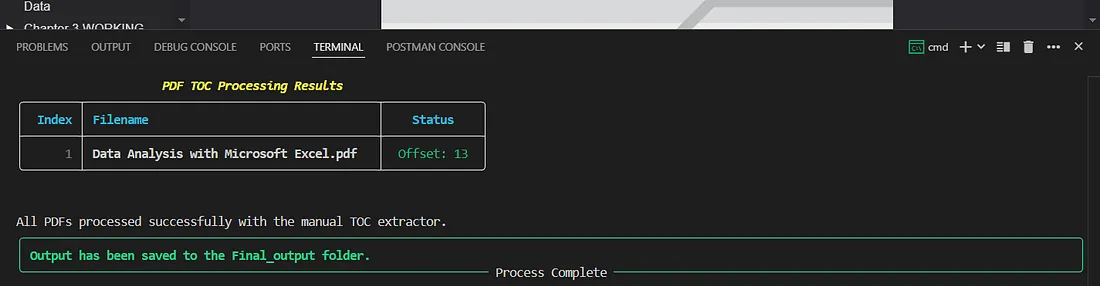 Terminal output showing the offset detection and corrected page numbers
Where method 1 falls apart
Pretty good — but it doesn't work for all PDFs.
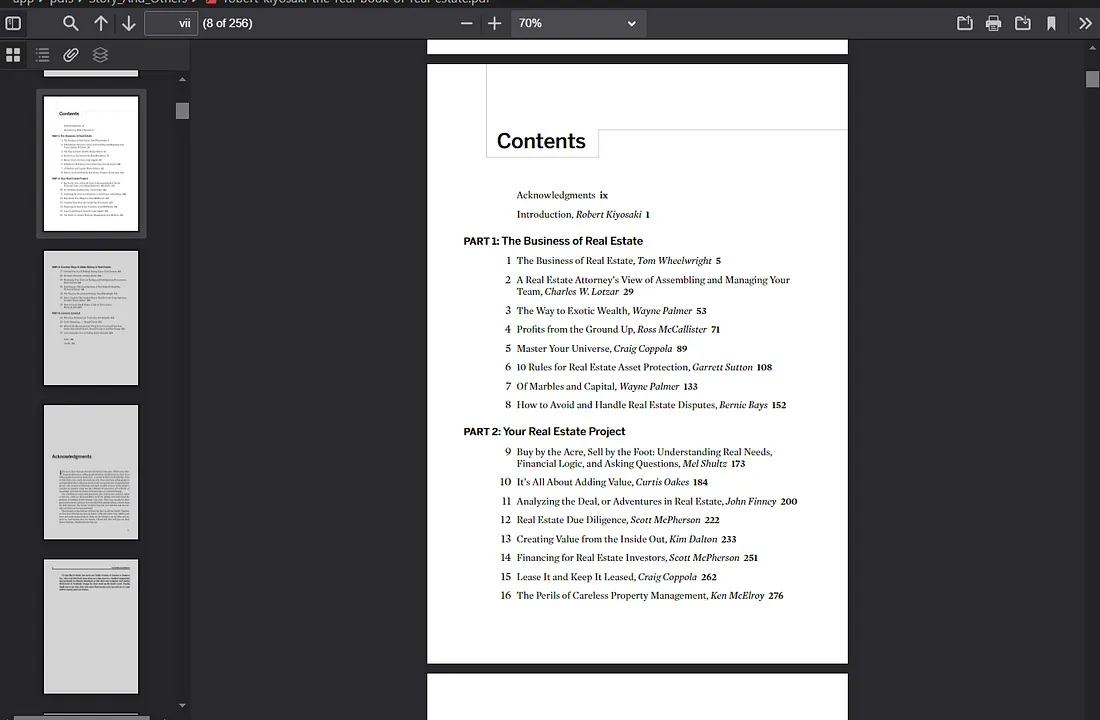
When the TOC is structured in a non-standard format, PyMuPDF can't identify it. The script relies on a standard hierarchy that simply doesn't exist in messy PDFs.
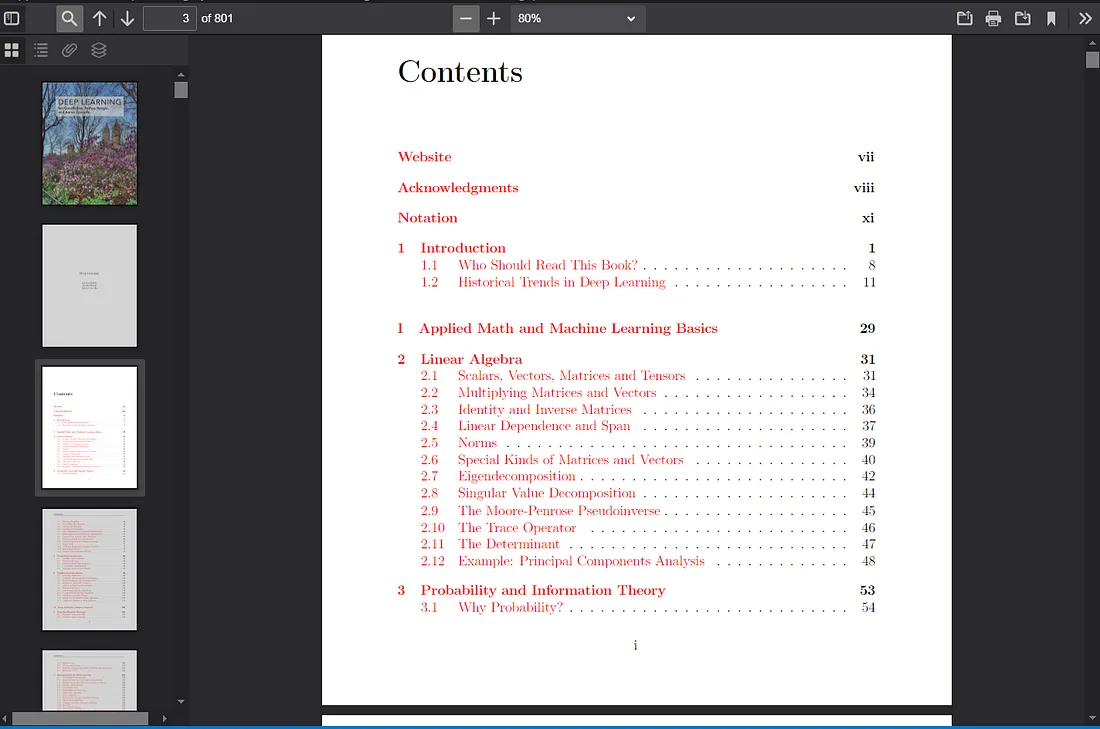 A PDF whose non-standard TOC format defeats the first method
When that happens, method 1 returns nothing — the output folder for that PDF is empty.
 Empty extraction result — no TOC retrieved from the failed PDF
So while this approach works for many PDFs, it struggles with non-standard layouts. We needed something better.
Method 2 — Custom extractor with PDFPlumber (Custom_TOC_Extractor_2.py)
When the first method fails, the PDF is processed by the second method, which extracts the TOC differently.
Step 1 — Extract content with PDFPlumber
The script uses PDFPlumber to extract all text content from the PDF.
- Why PDFPlumber?
PyMuPDFis about 5× faster, butPDFPlumberis more accurate for text content extraction. - To speed up
PDFPlumber, a concurrent approach processes multiple PDFs in parallel. - Extracted content is saved to
output/extracted_content.
Step 2 — Locate the TOC region
Once the content is extracted, the script applies logical functions and regex patterns to find the TOC.
- Focus on the first 700 lines. TOCs are usually at the start of a document, so we limit the search window.
- Find the TOC heading. Look for common headings like "Table of Contents", "Contents", or "Index" using a customizable keyword list.
Step 3 — Extract topics and page numbers
After locating the TOC heading, the script identifies patterns for entries:
- Standard format:
Chapter 1 Introduction ...... 5 - Roman numerals:
III Methods ...... 20 - Section numbers:
2.3 Results ...... 35
The extracted TOC is saved to output/02. Topics and page numbers come through cleanly even when method 1 failed entirely.
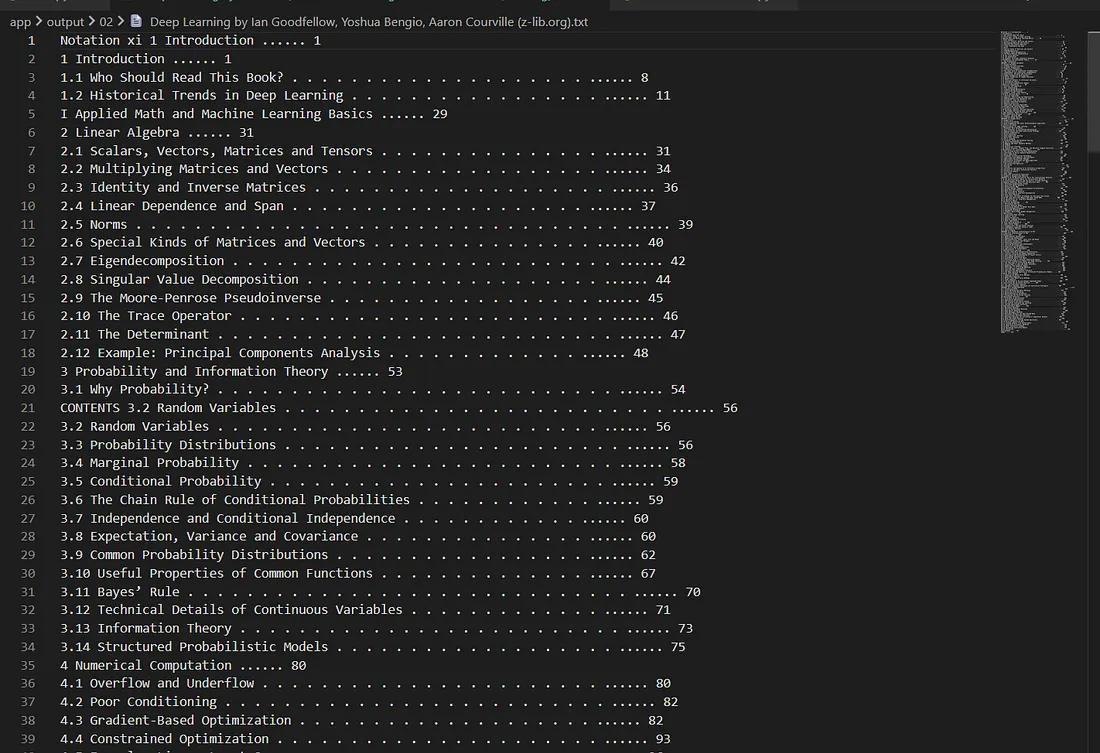 TOC successfully extracted by the second method for a PDF that failed the first
But even method 2 isn't bulletproof. For PDFs that defeat both methods, we hand off to the third — a chain of three sub-filters.
Method 3 — Three-stage filter chain (Filtering_Structuring_3.py)
This method is three sub-filters processed one by one, located in utils/Filters_03.
Sub-filter 1 — Filter_from_2nd_method_1.py
Starts from the extracted content. Searches for TOC headings ("Table of Contents", "Index", "Contents"), then looks for topic + page-number patterns (similar to method 2).
To filter irrelevant data:
- It checks consecutive 5 lines of text and counts the number of words in each line.
- If 3 or more of those 5 lines contain more than 10 words, those lines are removed.
- This filters out long paragraphs, since TOC entries are usually short.
Logs at output/Filters_03/01/toc_extraction.log.
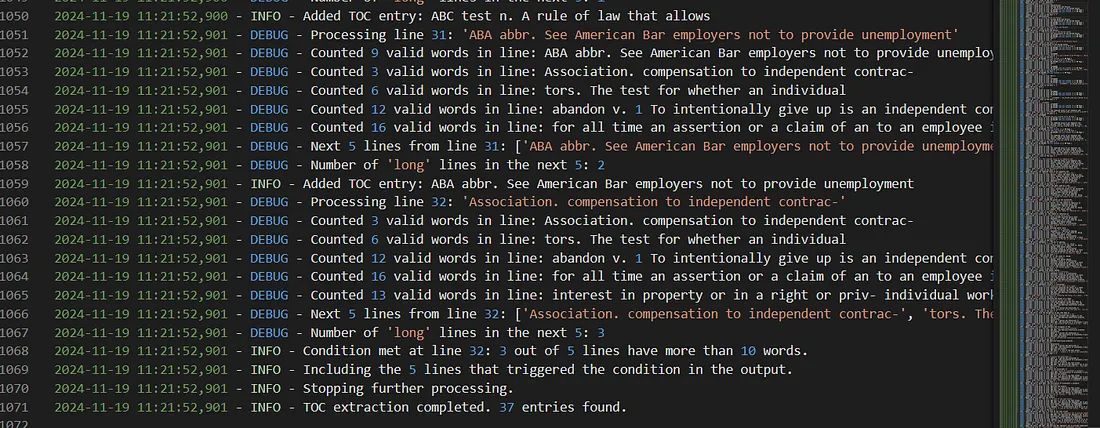 Sub-filter 1 logs showing the consecutive-line word-count filter at work
Sub-filter 2 — Filter_Two_Points_2.py
After sub-filter 1, this script first identifies the TOC heading pattern, then:
Removes lines that are only symbols, numbers, decimals, or spaces.
Examples removed:
****,----,####62.7,2015-16,2016-17
Searches for entry patterns — lines starting with phrases like "Chapter One" or "Part 1", or lines ending with a page number.
- Kept:
Chapter 1 Basics ........... 3 - Removed:
Postal address 123 456(avoids treating non-page numbers like postal codes as page numbers).
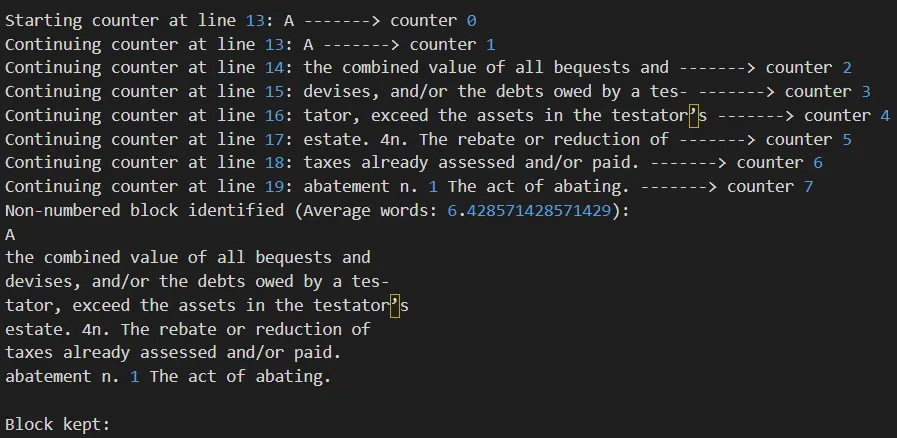 Block of lines kept after the second filter — clean TOC entries only
Counter-based irrelevant-line removal:
- Instead of checking word count over 5 consecutive lines, it checks whether each line matches the pattern criteria (starts with a TOC keyword or ends with a page number).
- If consecutive lines don't match, a counter increases. Once the counter reaches 5 it doesn't stop — it continues until the pattern is found again or the file ends.
- After identifying these lines, the script calculates the average number of words in them.
- If the average exceeds a threshold (currently 6.8, adjustable), all those lines are removed.
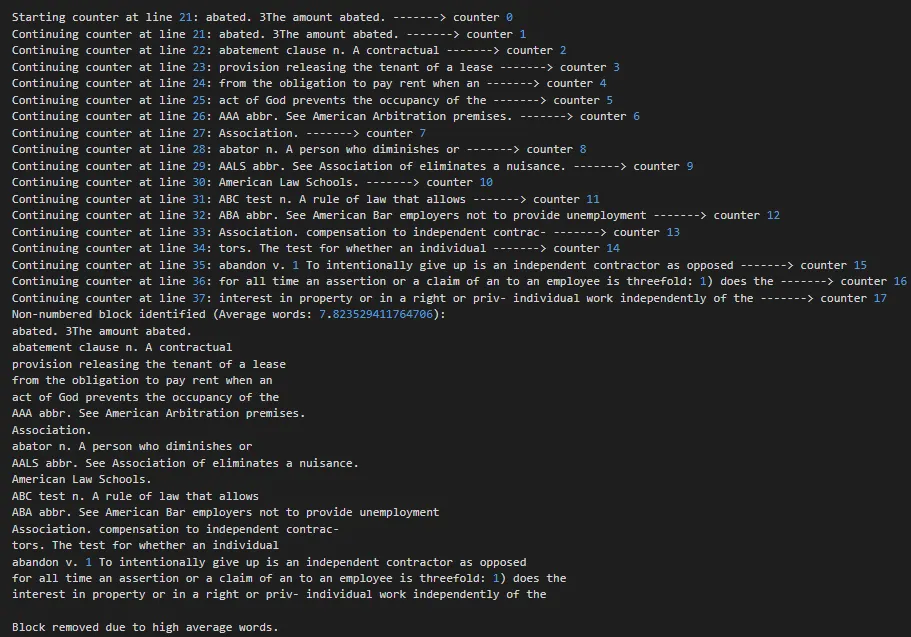 Block of lines removed after the average-words check exceeded the threshold
Logs at output/Filters_03/02_logs.
Sub-filter 3 — Filter_Remove_Extra_Text_3.py
The most effective filter. Final stage of the third method.
First the heading patterns are identified, just like in the previous methods. Then three filtering sub-steps run conditionally.
Sub-step 1 — Chapter/Part keyword filter. Only applied if the filtered file has more than 350 lines. Looks for lines starting with "Chapter", "Part", page numbers, Roman numerals, or decimals. If 15 consecutive lines don't match, processing stops and those 15 lines are also removed.
Examples: Chapter 1, Part Two, CHAPTER IV
Sub-step 2 — Page-number-ending filter. Applied when sub-step 1 didn't run (file ≤ 350 lines):
-
Looks for lines that end with a page number.
-
If 5 such lines (not necessarily consecutive) are found, the method activates.
-
During processing, if 5 consecutive lines are found that:
- Do not end with a page number,
- Do not start with keywords, bullets, or numbering,
processing stops and those 5 lines are removed.
Examples: Introduction ...... 1, Chapter 1 Basics ...... 3-7. Also handles decimals (1.1, 2.3), Roman numerals (I., IV), and other numeric formats (3).
Sub-step 3 — Trailing-content cleanup. Removes content after the actual TOC ends:
- Skip the first 15 lines.
- From line 16, scan for keywords like
INTRODUCTION,ACKNOWLEDGEMENT,INDEX,APPENDIX. - When a keyword is found, start a counter for the next 5 lines.
- If another keyword is found, reset the counter.
- If no keyword is found within 5 lines, processing stops and those 5 lines are removed.
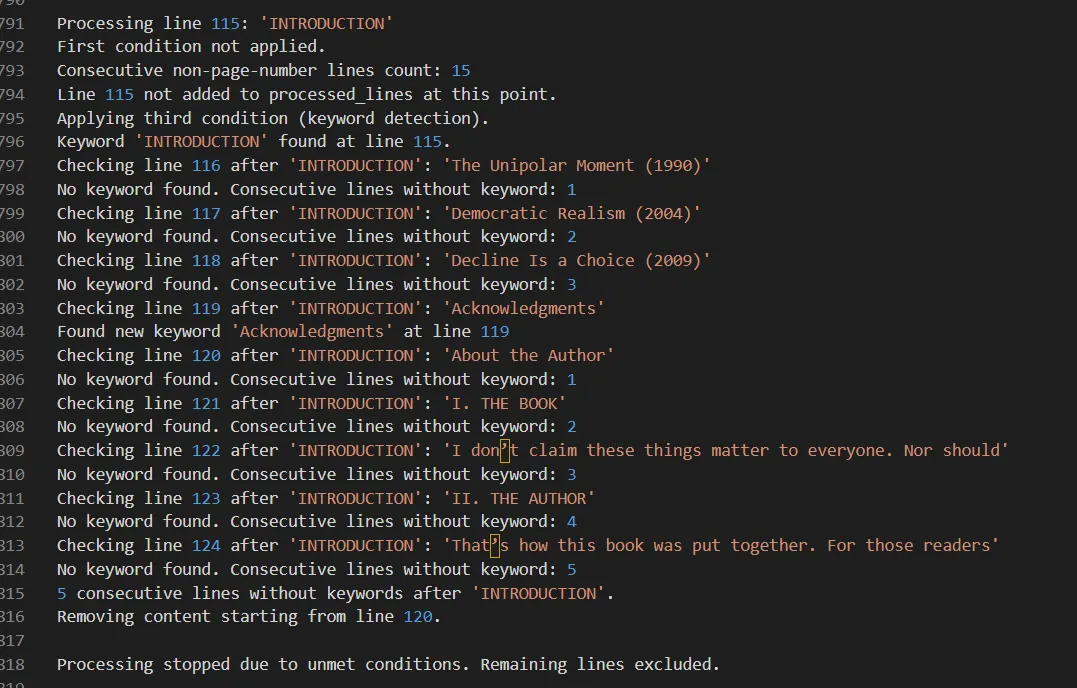 Keyword-driven cleanup — counter resets when keywords like INTRODUCTION or APPENDIX are found
Where the final output lives
The final TOC for every processed PDF is saved at output/Final_output.
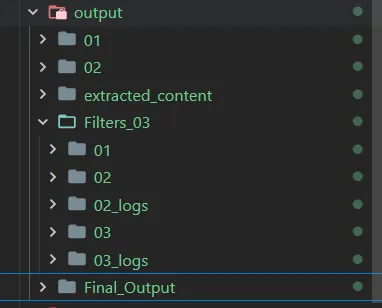 Output folder layout — one folder per method, with final TOC files inside
Each method has its own output folder:
output/01— results from method 1 (PyMuPDF /fitz)output/02— results from method 2 (PDFPlumber + regex). Theextracted_contentsubfolder holds raw extractions for PDFs that failed method 1 and reached method 2output/Filters_03— three subfolders (01,02,03), one per sub-filter. Thefinal_outputfolder inside contains the final TOC text files
To avoid manually deleting output files each time you process new PDFs, the script utils/clear_output_folders.py clears all output folders while preserving the directory structure. Saves you a rm -rf every run.
Try it yourself
The GitHub repo ships with a wide variety of PDFs from different domains for testing — and you can drop in your own PDFs to validate the extraction. It's a solid sandbox for refining the pipeline further.
If you've solved this problem differently — or know of better approaches that don't lean on ML — I'd love to hear about them.